A Complete Guide to Resolving HEIC Image Loading Errors in Ubuntu 26.04 LTS
Introduction
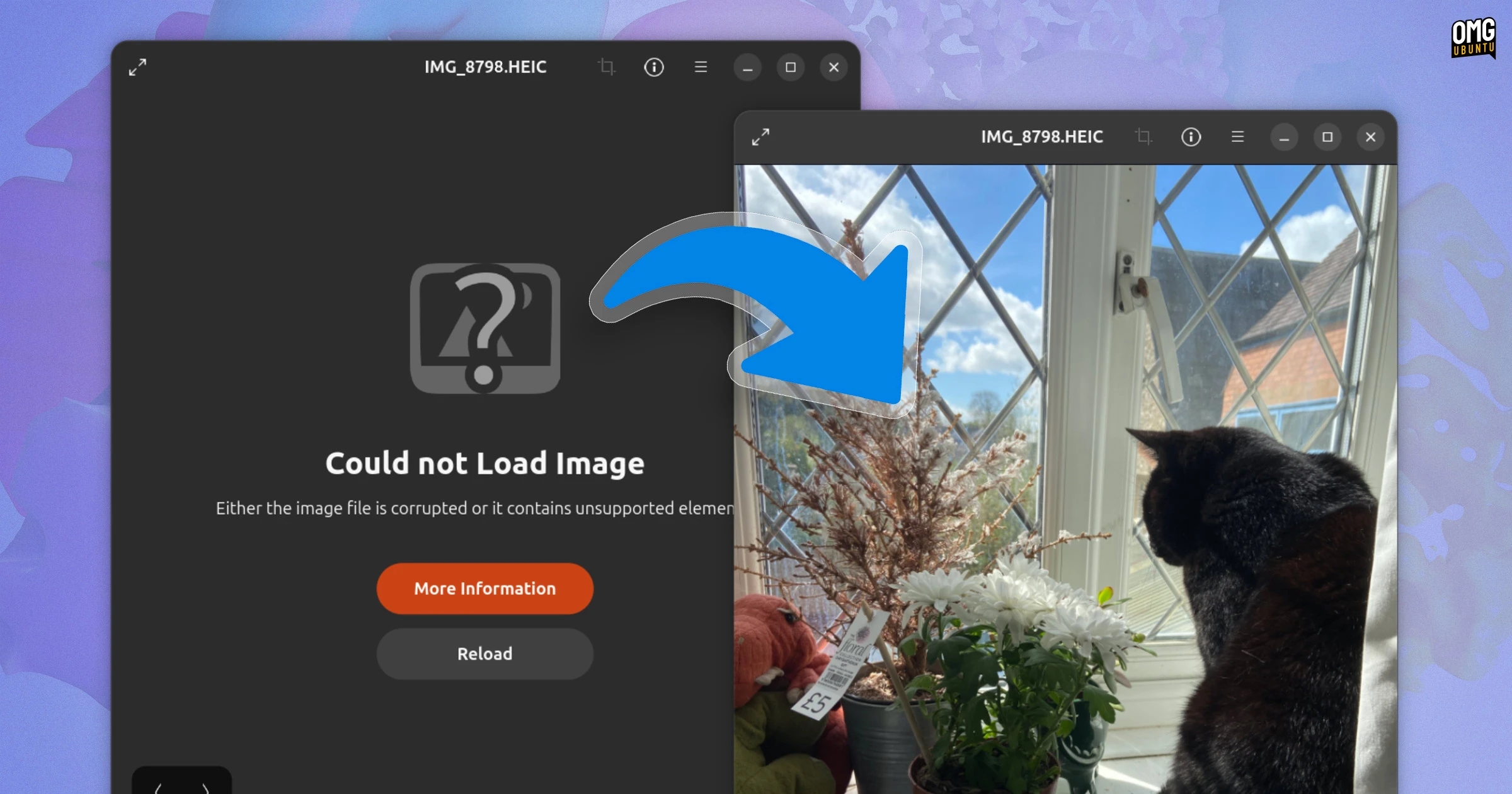
If you’ve copied your latest smartphone photos to your Ubuntu 26.04 LTS machine only to be greeted by a frustrating “Could not load image” message in the default Image Viewer, you’re not alone. This error strikes HEIC (High Efficiency Image Container) files — a modern format used by iPhones and many Android devices — because Ubuntu 26.04 LTS no longer ships with a built-in decoder for that format. While this change was intentional for licensing reasons, it’s straightforward to fix. This guide walks you through installing the necessary decoder so that your HEIC photos display perfectly, just as they would on your phone. No advanced skills required — just a few terminal commands and five minutes of your time.

What You Need
- A computer running Ubuntu 26.04 LTS (or a closely related derivative like Xubuntu).
- An active internet connection to download the required packages.
- Administrative (sudo) access — you’ll need to install software system-wide.
- A terminal emulator (Ctrl+Alt+T to open).
- Optional: one or two sample HEIC files to test with (you can download one from the web or use your own imported photos).
Step-by-Step Instructions
Step 1: Confirm the Problem
Before making any changes, let’s verify that the issue is indeed the missing HEIC decoder. Try opening an HEIC file in the default Image Viewer (GNOME’s LensFlares or Eye of GNOME). If you see a pop-up saying “Could not load image” or the photo appears as a blank placeholder, the decoder is not installed.
Alternatively, you can check from the terminal:
apt list --installed 2>/dev/null | grep -i heifIf this command returns nothing (or only lists unrelated packages), the libheif library is missing — that’s the core decoder for HEIC/HEIF formats.
Step 2: Update Your Package List
It’s always a good idea to refresh your package metadata before installing new software. Open a terminal and run:
sudo apt updateThis downloads the latest package lists from Ubuntu’s repositories. Wait for it to finish – usually takes a few seconds.
Step 3: Install the HEIC Decoder Library
The essential component is libheif, which provides HEIC decode (and encode) support. The quickest way is to install the libheif1 package and its dependencies. Run:
sudo apt install libheif1Ubuntu will automatically pull in any required additional libraries (e.g., libde265). Type Y when prompted. This single package is enough to let Image Viewer and many other applications handle HEIC files.
If you also want command-line utilities to convert HEIC images to other formats, install the full suite:
sudo apt install libheif-examplesThis gives you tools like heif-convert and heif-info.
Step 4: Verify the Installation
After installation, check that the library is now present:
apt list --installed 2>/dev/null | grep -i heifYou should see libheif1 (and possibly libheif-examples) listed. Now try opening an HEIC file again in the Image Viewer. The photo should display normally, with all its colors and details intact.
Step 5: (Optional) Test with Other Applications
While the default viewer now works, you may also use other photo software like Shotwell, GIMP, or eog (Eye of GNOME). Open the same HEIC file in each to confirm they can read it. If any still fail, they might require an additional plugin – but in most cases, installing libheif1 is sufficient system-wide.
For GIMP, you may need to install the gimp-plugin-heif package:
sudo apt install gimp-plugin-heifStep 6: (Optional) Batch Convert HEIC Files for Compatibility
If you frequently share photos with people using older software that doesn’t support HEIC, you may want to convert a batch of images to a universal format like JPEG. The heif-convert tool from libheif-examples makes this easy.
Navigate to your folder of HEIC files and run:
heif-convert photo.heic photo.jpgTo convert all HEIC files in the current directory at once, use a loop:
for f in *.heic; do heif-convert "$f" "${f%.heic}.jpg"; doneThis creates JPEG copies that any device or operating system can open.
Tips and Troubleshooting
- Check your “universe” repository: The
libheifpackage is in the Universe repository, which is enabled by default on Ubuntu 26.04 LTS. If you ever disabled it, re-enable it withsudo add-apt-repository universefollowed bysudo apt update. - If the image still won’t open: Make sure the file isn’t corrupted. Try copying it from your phone again using a different method (MTP vs. USB mass storage).
- Alternative viewers: If you’d rather not touch the command line, you can install a third-party image viewer like nomacs or qView that bundles its own HEIC support via built-in libheif.
- HEIC vs. HEIF: Technically, HEIC is a container format that uses HEIF (High Efficiency Image File) with H.265 compression. The
libheiflibrary handles both, so installing it resolves all variants. - Future-proofing with regular updates: Keep your system up-to-date by running
sudo apt upgradeoccasionally; newer versions of libheif may bring speed improvements and bug fixes.
Conclusion
With just two terminal commands (sudo apt update and sudo apt install libheif1), you can restore full HEIC image support in Ubuntu 26.04 LTS. Whether you use your computer for casual photo browsing or professional editing, this tiny fix eliminates the “Could not load image” error and lets you work with modern smartphone photos natively. No fiddling with unsupported file conversions — your images will look as crisp as the day you snapped them.