Revolutionizing Folder Navigation: How Zoxide Makes Windows File Explorer Feel Outdated
Introduction: The Hidden Pain of File Navigation
For years, navigating folders on Windows has been a workable but uninspired experience. The trusty File Explorer opens with a predictable tree view, and you can click your way through directories. It gets the job done — but in an era where AI is being shoehorned into everything from email to photo editing, file management remains stubbornly unintelligent. You know the drill: scrolling through long lists, remembering exact folder names, or typing out full paths in the command line. Yet a simple command-line tool called Zoxide has quietly rewritten the rules, making File Explorer feel not just slow, but fundamentally broken.
The Problem with File Explorer: Manual and Memory-Intensive
File Explorer relies on two main navigation modes: manual clicking and typing absolute or relative paths. Both require you to know where files live and to remember the hierarchy. Even with shortcuts and pinned folders, switching between deep nested directories means a flurry of clicks or a perfectly typed path. There's no intelligence, no learning — just repetition.
Core Limitations
- No history awareness: File Explorer doesn't learn which folders you visit most often or how you navigate.
- No fuzzy matching: Typing a partial folder name yields no suggestions unless you're in the search box.
- Requires absolute precision: A missing backslash or a typo sends you to the wrong location or gives an error.
- Keyboard navigation is clunky: Tab completion works in the address bar, but only for the current directory's children.
These limitations become painfully obvious when you're toggling between multiple projects, each buried in a deep path like C:\Users\Name\Projects\Client\Build\Debug\v2024.
Introducing Zoxide: A Smarter, Learning Directory Jumper
Zoxide is a cross-platform command-line tool (successor to z and autojump) that remembers the directories you use most often. Instead of typing full paths, you type a few keywords, and Zoxide jumps you to the best match. It works in PowerShell, Command Prompt, and even inside WSL on Windows.
How Zoxide Learns Your Habits
Every time you change into a directory using cd (or its own command z), Zoxide records that path and assigns a frequency and recency score. Over time, it builds a ranked database of your most important folders. When you invoke a jump, it uses a fuzzy matching algorithm to find the closest match based on your input, factoring in how often and how recently you've visited the folder.
Installing Zoxide on Windows
- Via Winget: Open PowerShell as Administrator and run
winget install zoxide. - Via Scoop:
scoop install zoxide. - Manual: Download the latest release from GitHub and add to PATH.
After installation, you need to hook it into your shell. For PowerShell, add the following to your profile (notepad $PROFILE):Invoke-Expression (& { (zoxide init powershell | Out-String) })
Restart your terminal, and you're ready.
Why File Explorer Feels Broken After Zoxide
Once you start using Zoxide daily, going back to File Explorer's click-and-scroll feels like using a map when you've grown accustomed to GPS. Here's why the contrast is so stark.
Speed and Efficiency: Seconds vs. Clicks
With Zoxide, jumping to C:\Users\Name\Projects\Client\Build\Debug\v2024 becomes a simple z client build debug. No clicking through five levels, no typing the full path. If you work in that folder often, Zoxide will even rank it higher, so z client might take you directly there. This turns navigation into a near-instantaneous action — faster than any GUI can replicate.
Smart Navigation Beats Visual Browsing
File Explorer presents a flat list of files and folders; you have to visually scan and click. Zoxide, on the other hand, uses fuzzy matching and machine learning (in a lightweight way) to predict your destination. For example, if you have folders named Documents and Downloads, typing z doc will take you to the most relevant one based on your history. If you've been working on a project called photo-editor, typing z photo will land you there even if the full path is D:\Projects\ImageTools\photo-editor.
Muscle Memory Made Simple
With File Explorer, each folder structure forces you to remember a mental map. With Zoxide, you can navigate by concept instead of path. Over a few days, you develop a natural instinct: type z build to go to the build output, z src for source code. The tool adapts to your workflow, not the other way around.
Getting Started: Basic Zoxide Commands and Tips
Core Commands
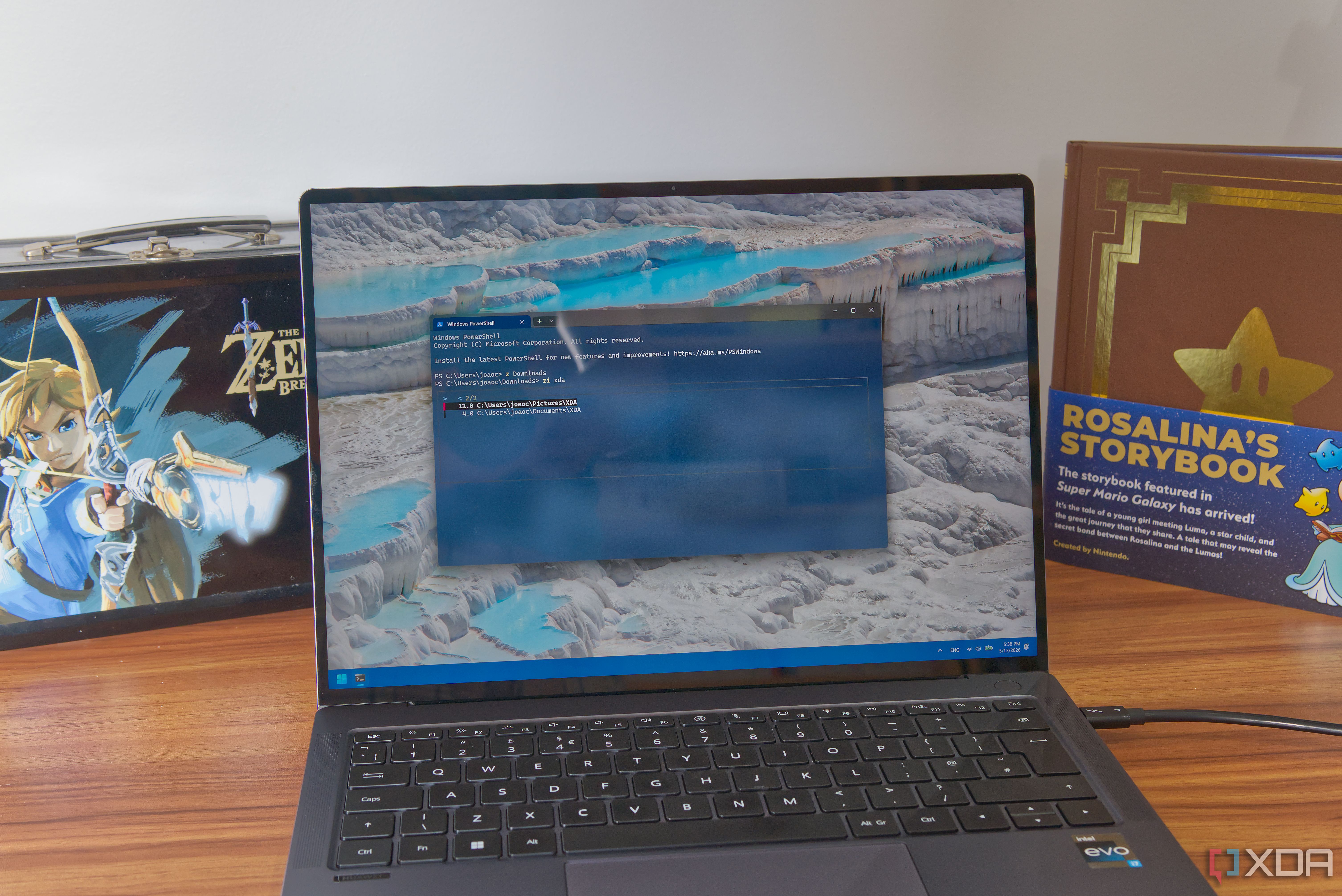
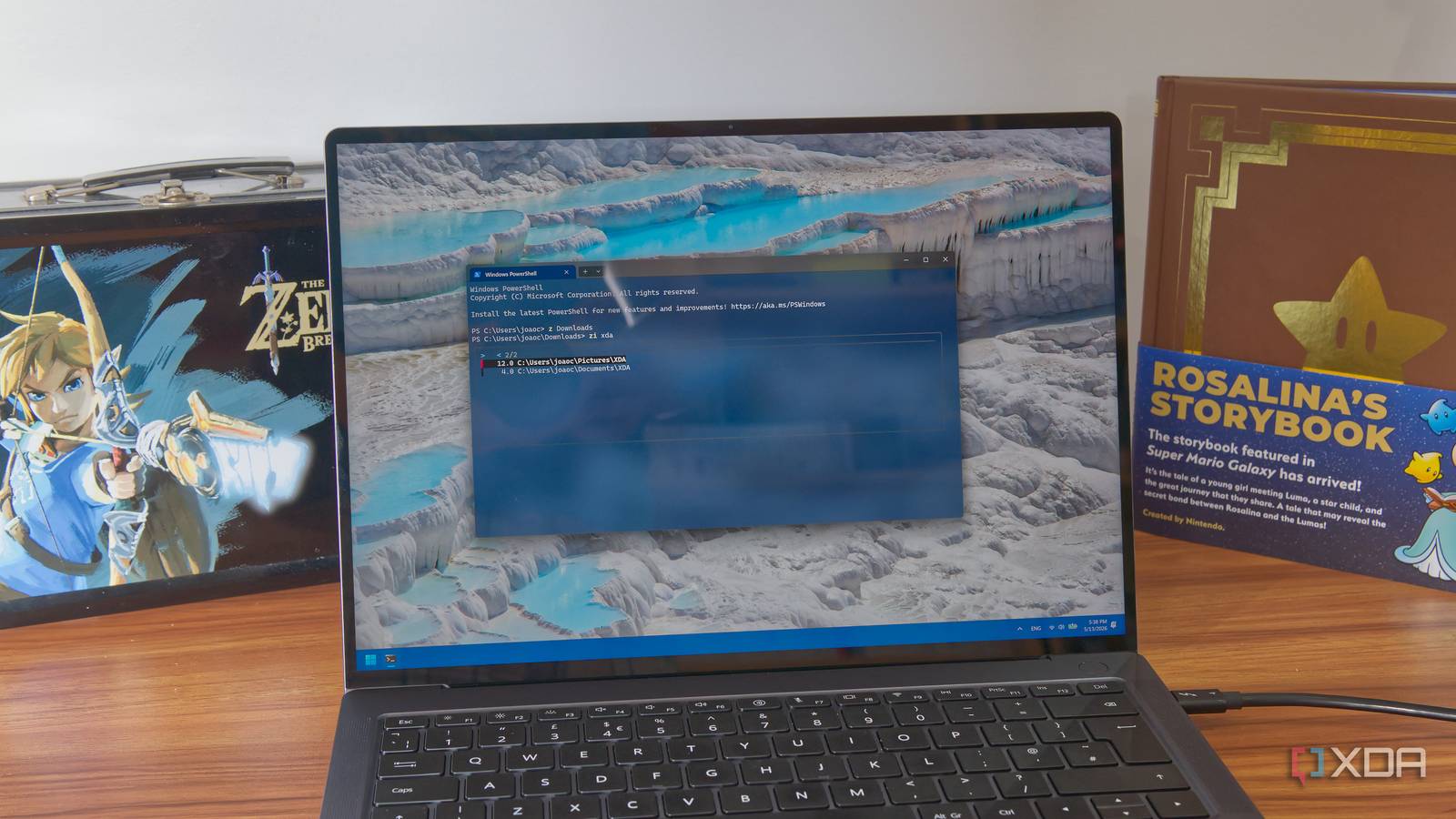
z <keyword>— jumps to the best matching directory.zi <keyword>— interactive mode: shows a list of matches you can pick from.z -l <keyword>— lists matches without jumping.z -— goes to the previous directory (likecd -).
Pro Tips
- Combine with aliases: Create shorter commands like
jforzto speed up even more. - Use in scripts: Zoxide works inside scripts, making automated workflows dramatically simpler.
- Sync across machines: You can export your Zoxide database to a JSON file and import it on another computer, maintaining your learned habits.
- Integrate with terminal multiplexers (like tmux or Windows Terminal panes) for a seamless multi-directory workflow.
Conclusion: A Simple Tool That Changes Everything
Zoxide doesn't replace File Explorer for tasks like previewing files or dragging items; it's a navigation accelerator for the command line. But in a world where developers, writers, and power users spend a huge chunk of time moving between directories, the difference is transformative. Once you've used Zoxide for a few days, the GUI's clicks and scrolls feel like a relic — functional, but broken in the face of intelligent, adaptive navigation. If you're still double-clicking through folders in 2025, it's time to give Zoxide a spin. Your terminal will thank you.