Maximize Your External SSD Performance: Why Rear Ports Trump Front Panel Connections
Overview
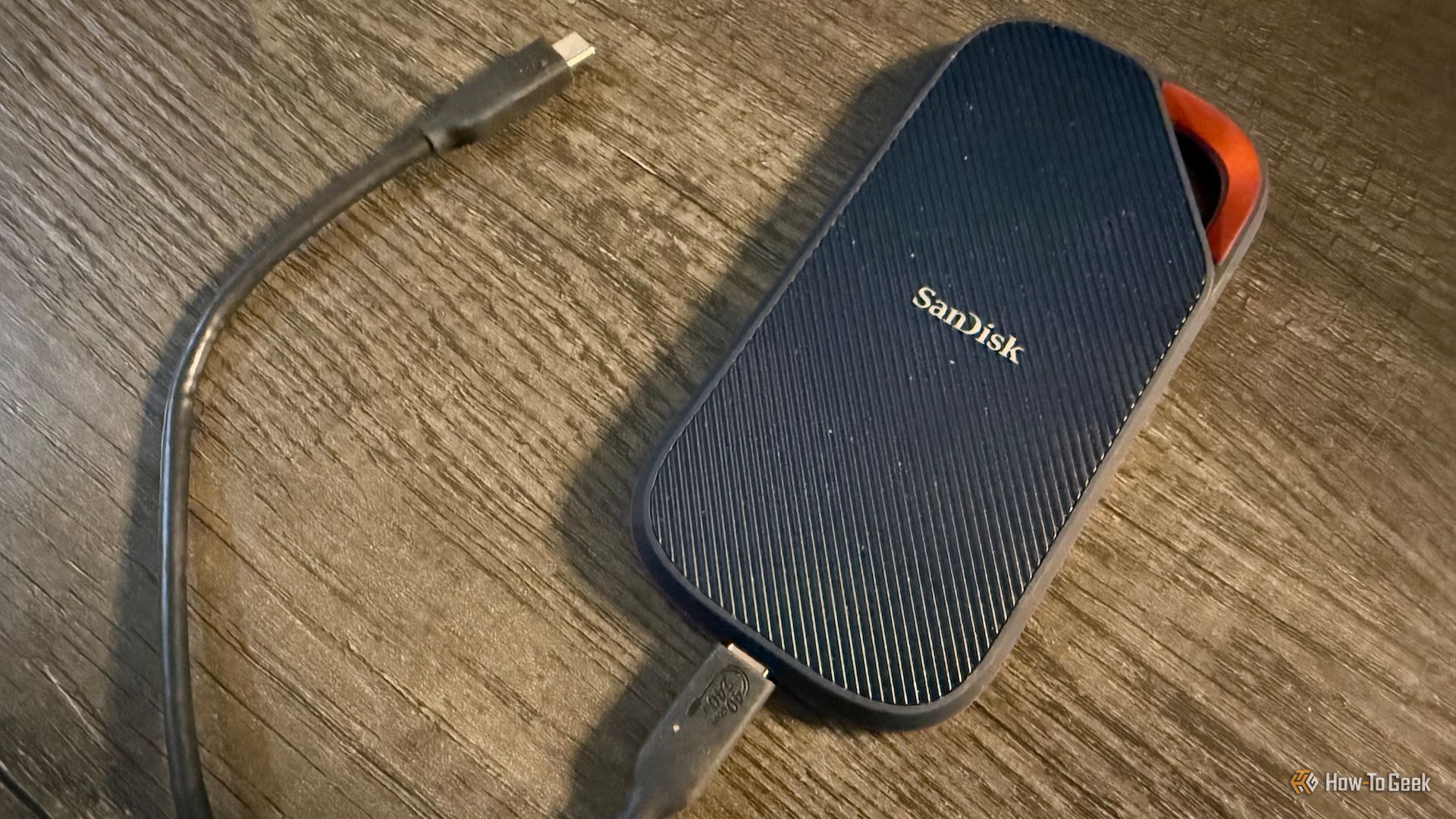
External SSDs are a cornerstone of modern data backup and fast file transfers. But even the best SSD can be held back by a simple mistake: plugging it into your computer’s front panel USB port. While convenient, these ports often deliver inconsistent power, slower speeds, and can even shorten your drive’s lifespan. This tutorial will explain the technical reasons behind this performance drop and guide you through the optimal connection setup.
Prerequisites
- An external USB SSD (USB 3.0 or higher)
- A desktop or laptop computer with accessible front and rear USB ports
- Optional: USB cable with ferrite bead for noise reduction (recommended for long runs)
- Optional: A powered USB hub if you must use front ports
Step-by-Step Instructions
1. Identify Front vs. Rear USB Ports
Front panel ports are typically located on the front or top of your computer case. They connect to the motherboard via an internal cable. Rear ports are directly soldered to the motherboard itself, giving them a shorter, cleaner signal path. For best results, always prefer rear USB ports (or the ports on the motherboard I/O panel).
2. Understand USB Hub and Motherboard Connections
Front panel USB ports are essentially a mini hub. The internal cable from the front panel to the motherboard introduces extra resistance and signal degradation. This can lead to voltage drop, especially under load. A voltage drop from 5.0V to 4.8V may seem minor, but SSDs are sensitive—lower voltage increases error rates and can cause the drive to throttle down or disconnect.
3. Performance Impact: Why Front Panel Is Slower
Testing shows that front panel ports can reduce sequential read/write speeds by 10–30% compared to rear ports. The reasons:
- Signal integrity: Longer traces and lower-quality connectors increase jitter.
- Power delivery: Many front panels are limited to 900mA (USB 3.0 standard) but can drop below 800mA due to cable resistance. SSDs need stable 5V/1A+ for peak performance.
- Noise interference: The internal cable runs near other power cables (GPU, CPU), picking up electromagnetic interference that corrupts data packets and triggers retransmissions.
4. Lifespan Concerns: Heat and Power Instability
An external SSD’s NAND flash and controller generate heat. When the drive is forced to retransmit data due to noise, it works harder and gets hotter. Combined with unstable voltage, the controller may increase current draw to compensate, leading to thermal stress. Over time, this accelerates wear on both the NAND and the USB bridge chip. Some drives may even suffer from the “USB brownout” condition, where repeated voltage dips cause premature failure.
5. How to Properly Connect Your External SSD
Follow these steps to ensure maximum speed and longevity:
- Use a rear USB port—preferably a blue USB 3.0 or red USB 3.1/3.2 port on the motherboard I/O panel.
- If you must use the front, invest in a powered USB 3.0 hub connected to a rear port. This provides clean power and reduces signal degradation.
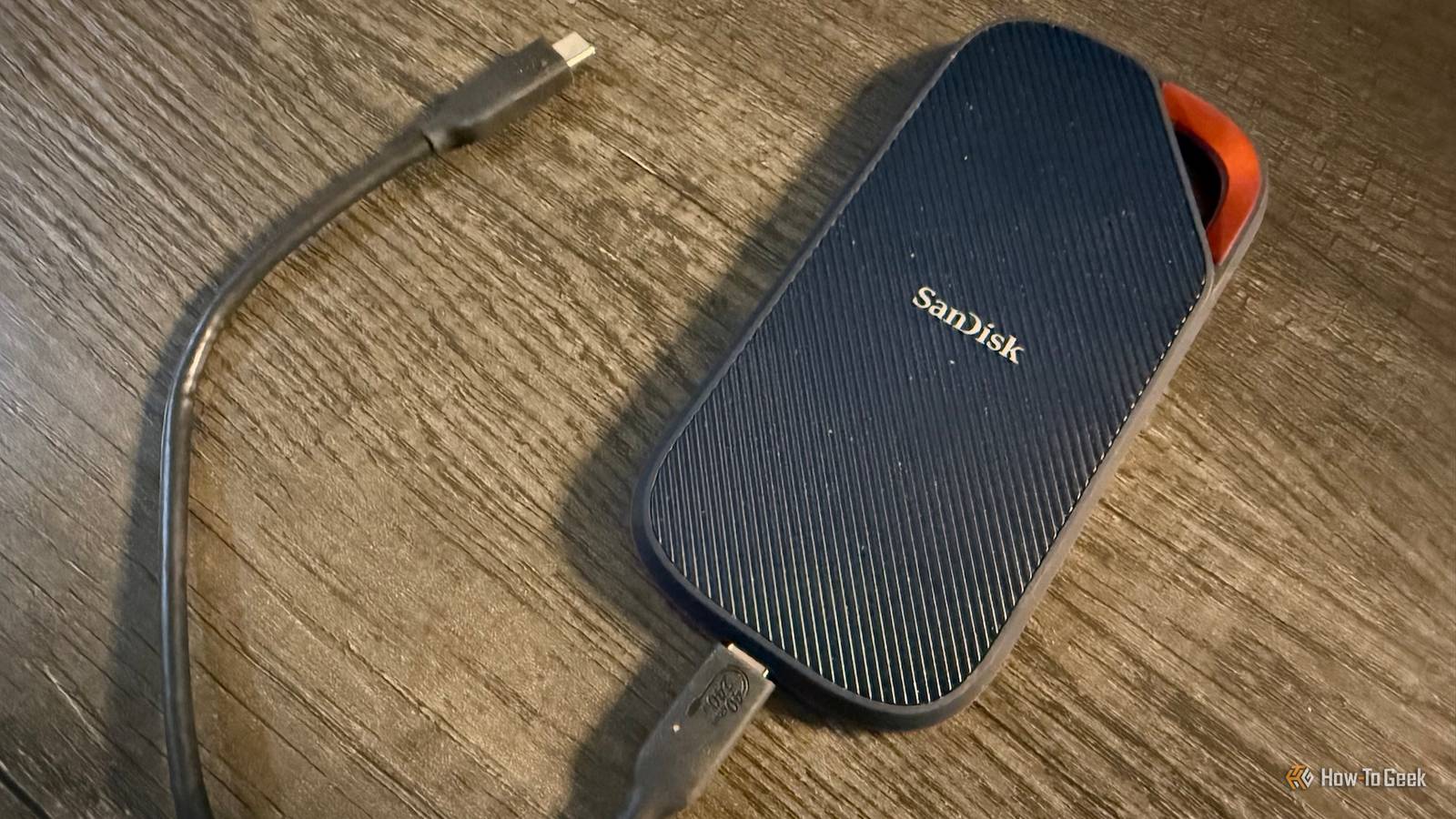
- Keep the cable short—use the cable that came with your SSD (typically 1 m or less). Avoid extension cables.
- Avoid USB-C to USB-A adapters unless necessary—they add another point of resistance.
- Enable USB selective suspend in Windows power settings temporarily to prevent the port from sleeping during large transfers.
Common Mistakes
- Using a front panel port directly without a quality hub—this is the #1 cause of slow speeds.
- Assuming all USB ports are equal—even two rear ports can vary; always test with a benchmark.
- Overlooking cable quality—thin, unshielded cables are more prone to interference.
- Forgetting thermal management—placing an SSD on a hot surface (like near a GPU exhaust) nullifies the port advantage.
- Running long USB cables across the room —excessive length magnifies voltage drop and signal loss.
Summary
External SSDs are fast, but their full potential is unlocked only when connected to a clean, stable USB port—typically the rear motherboard ports. Front panel ports introduce power instability, signal noise, and thermal issues that can reduce speed by up to 30% and shorten drive lifespan. By using rear ports, powered hubs, or short high-quality cables, you ensure reliable backups and maximum performance for years to come.