Why I Ditched Google TV's Default Home Screen for a Custom Launcher
After months of enjoying my Onn Streaming Box's snappy performance, I decided to explore how far I could push Google TV's customization. I quickly discovered that Google TV is far more locked down than standard Android when it comes to tweaking the home screen. To replace the launcher or make major interface changes, you need to side-load specific apps and tools. Below, I answer common questions about this process and why I'm never going back to the default setup.
1. What motivated you to replace Google TV's home screen?
I've always loved customizing my devices to fit my workflow and aesthetic preferences. While the default Google TV interface is functional, it felt cluttered with recommendations and ads. I wanted a cleaner, more focused experience where I could arrange apps exactly how I liked. The Onn Streaming Box hardware was already fast, so I knew the software could be improved. After researching, I learned that side-loading a third-party launcher like Lawnchair or Leanback Launcher could give me that control. The motivation was simple: reclaim the home screen as my own space, free from bloat and unnecessary distractions.
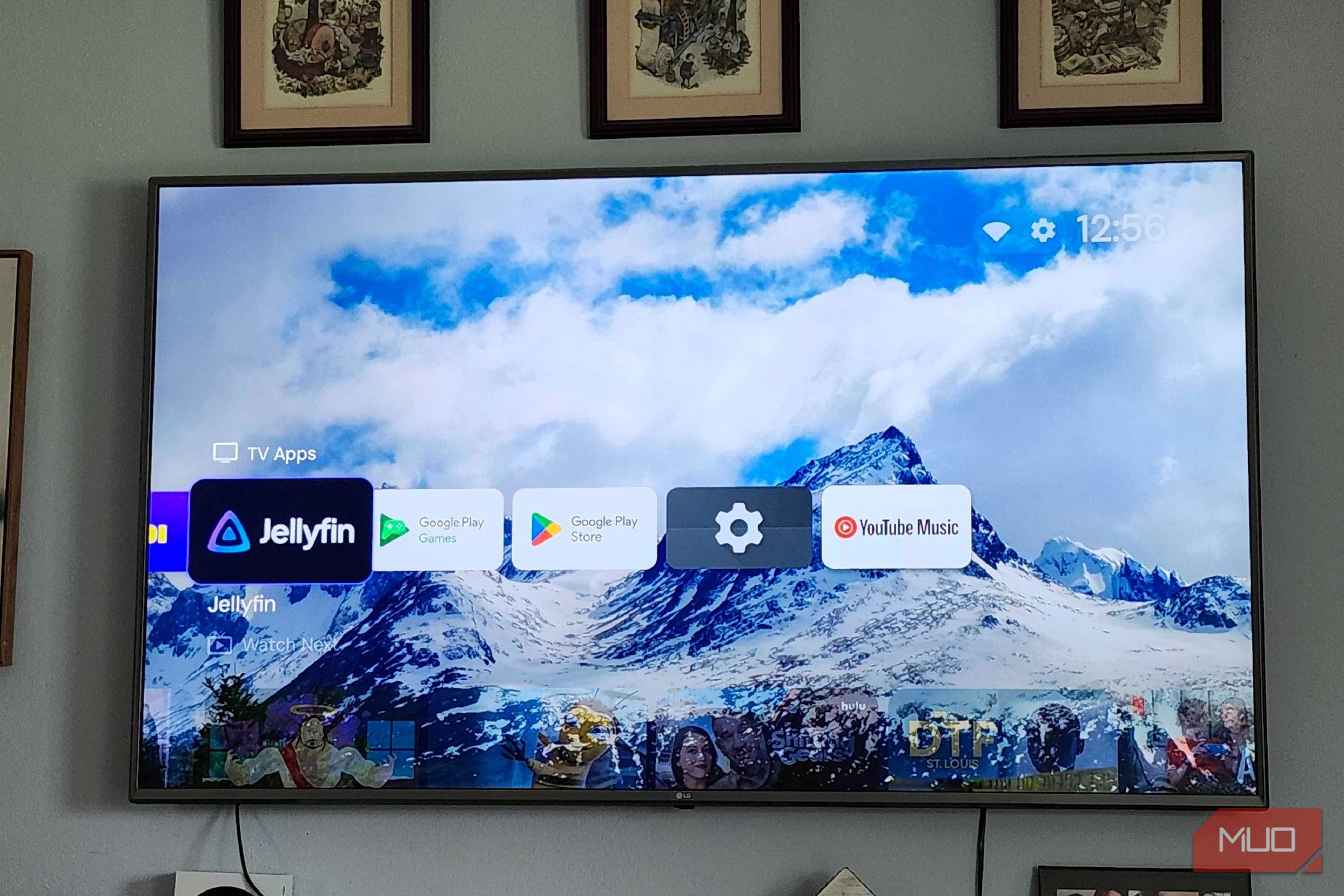
2. How did you go about installing a custom launcher?
Installing a custom launcher on Google TV isn't straightforward because the system blocks changes by default. First, I enabled Developer Options on the Onn box by tapping the build number seven times. Then I turned on USB debugging and installed the Send Files to TV app on both my phone and the streaming box. I transferred the APK of a lightweight launcher (like Leanback Launcher) directly to the TV. Next, I used a side-loading tool like Launcher Manager or ADB commands to set the new launcher as the default home app. After a reboot, Google TV's original home screen was replaced with my chosen launcher. The whole process took about 20 minutes, with clear instructions available online.
3. What challenges did you encounter during the process?
The biggest challenge was that Google TV actively tries to revert to its default launcher when it detects a change. Some apps, like the remote control button for home, would still trigger the original interface. I had to use a combination of Launcher Manager (which intercepts the home button) and disable the default launcher via ADB. Another issue was that some third-party launchers weren't optimized for TV navigation, leading to awkward cursor movements or missing voice search integration. I also had to manually grant accessibility permissions to Launcher Manager. Patience and testing different launcher variants were key. Ultimately, finding a launcher that respected TV form factors and remapping the home button solved most problems.
4. What are the main benefits you now enjoy with the custom launcher?
With the custom launcher, my home screen is completely ad-free and shows only the apps I use. I can organize them into folders, hide unused system apps, and even add widgets like a clock or weather display. The performance remains snappy because the launcher is much lighter than Google's default. I also gained the ability to customize the wallpaper and icon pack, giving the Onn box a personal touch. Voice search still works through the remote, and I can access Google Play and settings without issues. The biggest benefit is speed: the home screen loads instantly, and I no longer wait for recommendations to populate.
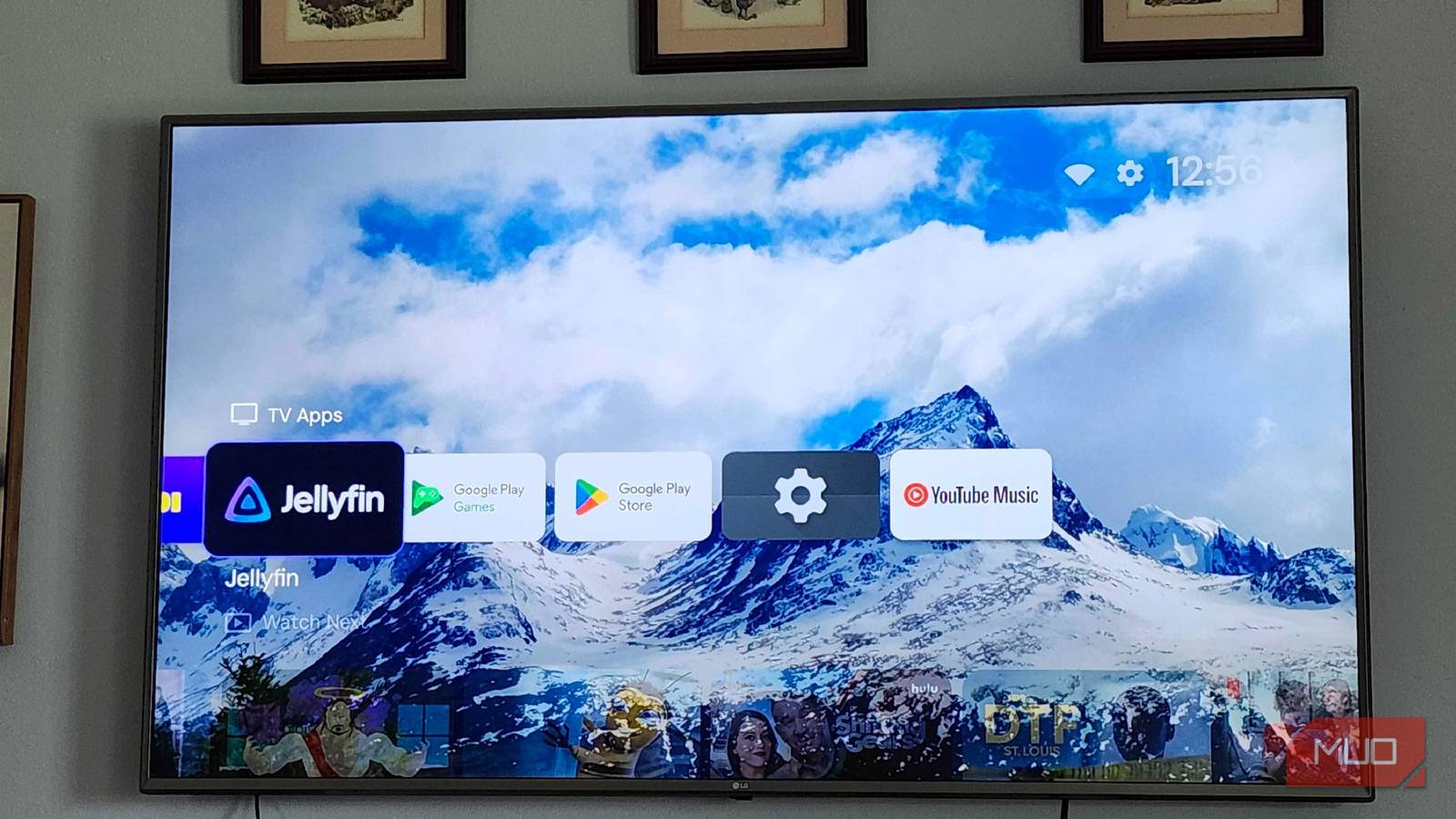
5. Do you lose any core Google TV features after switching launchers?
Surprisingly, I didn't lose essential functionality. The Google Assistant button on the remote still triggers voice search and commands. The continue-watching row and recommendations from streaming services are gone from the home screen, but you can still access them through individual apps. The settings menu, Google Play Store, and all installed apps remain fully accessible. The only missing piece is the default launcher's channel-style UI for live TV, but that can be replicated with third-party apps. If you ever want to revert, simply uninstall the custom launcher or switch back via ADB. So, the trade-off is minor compared to the gain in control and simplicity.
6. Would you recommend this modification to other Google TV users?
I would recommend it to users who are comfortable with basic side-loading and want a leaner, personalized interface. If you value speed, minimalism, and hate ads, the swap is life-changing. However, for less tech-savvy users or those who rely heavily on curated recommendations, it might not be ideal. The process isn't officially supported, and future updates could break the setup. But for me, the improved user experience is worth the occasional tweak. I've been using my custom launcher for months without major issues. If you're willing to spend 30 minutes learning a few simple steps, you'll likely never want to go back to the default home screen.